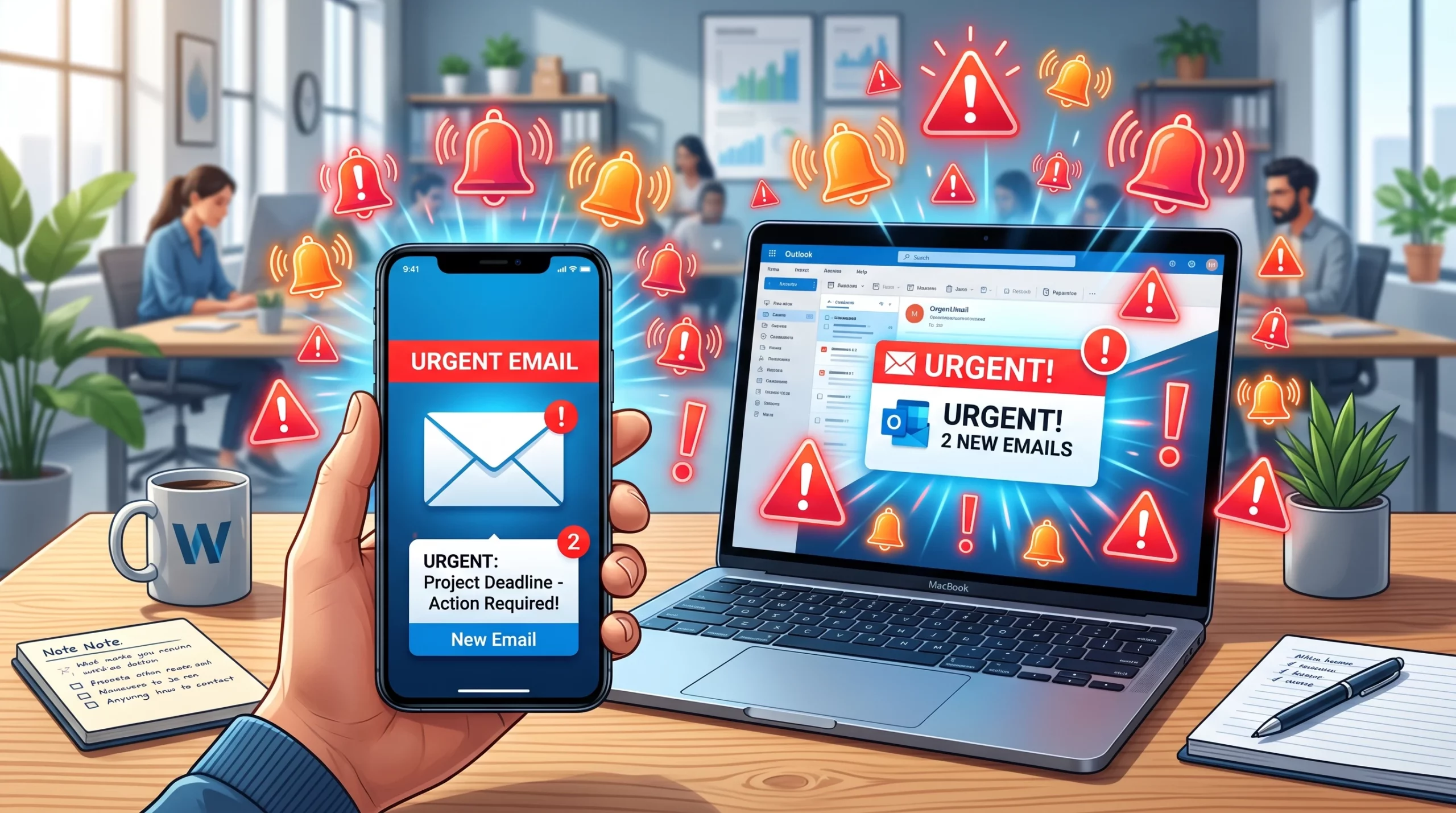
Staying on top of truly urgent emails isn’t easy. Constant email checking tends to kill productivity and adds stress, especially if most new messages aren’t really urgent. I’ve been down that road, answering email after email in real time. It pulls me away from getting more important things done.
The best part- you don’t really need to obsessively monitor your inbox to spot the important ones. There are pretty convenient ways to set up urgent email alerts so you’re only interrupted when it truly matters. The right setup can help you focus on your priorities while still being there for what’s critical.
This guide is packed with actionable steps for creating customized email alerts, you get notifications only for the messages that actually count. You’ll also get practical tips on how to keep your focus sharp without feeling like you’re missing something important.
Step 1: Decide What Counts as “Urgent”
Not every email is urgent, no matter how dramatic those subject lines try to sound. Figuring out your own criteria for urgency helps filter out noisy inbox clutter. For example, I only let emails from my boss or direct clients trigger alerts. Everything else can wait until I check email on my own schedule.
Questions to Help You Choose:
- Who sends you emails that need quick action?
- What subject lines or keywords point to a true emergency?
- Are there any deadlines or projects that need same-day responses?
Example “Urgent” Scenarios:
- Project issues flagged by your team.
- Client requests needing immediate input.
- System outage or support escalation notes.
- School or daycare emergency notifications.
Once you make your “urgent” list, you can set all your alerts around these specific triggers. This keeps distractions down and cuts out any FOMO (fear of missing out) about less important emails.
Step 2: Pick the Right Tools for Alerts
You have some good options for getting notified about urgent emails without staring at your inbox. It depends on what email platform you use, but most have tools built in or available as free or affordable add-ons.
Popular Ways to Set Up Custom Alerts:
- Gmail Filters + Notifications: Set up a filter for target senders or subjects and mark “important” emails to trigger desktop or mobile push notifications.
- Outlook Rules: Create a rule to pop up alerts or play a special sound when high priority emails arrive.
- Email Apps like Spark or Newton: Some third party apps let you build custom notifications for VIPs or keywords and mute everything else.
- If This Then That (IFTTT): Route urgent emails based on custom filters to your phone as push alerts or even text messages.
- Slack or Microsoft Teams Integration: Set up forwarding or a bot to ping you instantly in chat when specific emails hit your inbox.
Tip:
Test your notifications with some practice emails. This way you never miss a real alert because of silent notification settings or filters snagging the wrong messages.
Step 3: Create Smart Filters & Rules
This part is about fine tuning your system so you only get interrupted for the urgent things. Spending a few minutes crafting email filters makes a real difference. Many email platforms allow you to use several filters at the same time, letting you update or add rules as your needs change. For example, you might want to adjust for a new boss or a different client.
How I Built My Filters:
- I identified addresses and keywords that always mean an emergency for me (like my boss, top clients, or words like “outage” or “urgent”).
- I used Gmail’s filter tool to label those as “VIP alert” and set my phone to buzz only for that label.
- I adjusted my mobile and desktop email notifications to “off” for everything else.
- For Outlook you can use filters similarly and it works really well, I’ve used it at the office.
Extra Filtering Tips:
- Add backup triggers such as emails with “Important” marked or those sent directly to you.
- Review and update your rules once a month to keep up as your projects or contacts switch up.
- Keep filters narrow at first; too many broad rules will lead to alert overload and ruin your focus.
Step 4: Make Alerts Hard to Miss, But Not Annoying
It’s easy to end up with noisy alerts that are just as distracting as checking email all day. The trick is to customize how you get notified based on what works for you.
Ways to Stay Informed Without Going Nuts:
- Set a unique (but not jarring) sound for truly urgent emails.
- Use vibrations only for after hours or “do not disturb” times.
- Configure banners or popups on your desktop for VIP email alerts, with everything else showing up only within email apps.
- Try email to SMS for after hours stuff if you prefer phone notifications over email apps.
Mixing up your alert style can help you respond to important things quickly, without letting your phone turn into a source of anxiety. On weekends or outside of work hours, you can turn on only the most critical alerts so you aren’t hooked to your devices but still respond to true emergencies.
Step 5: Create Focus Time – Check Regular Emails on Your Schedule
With alerts set for truly urgent messages, you can batch process the rest of your inbox without missing anything crucial. I like to block out two or three specific times a day to check and respond to everything else. This helps me actually get real work done and gives me way less guilt about not replying instantly to every message.
Sample Focus Block Ideas:
- Morning: 20 minute inbox sweep after handling top priorities.
- Lunch: Tidy up replies and review for any missed semi urgent notes.
- Late afternoon: Clear as much as possible before closing up for the day.
Batch checking is super useful for mental clarity, letting you know you’ll get to everything in due time and only urgent things break through that focus window.
Troubleshooting: When Alerts Get Overwhelming (or Aren’t Working)
Why am I still getting too many alerts?
- Your filters may be too broad (for example, using “important” as a trigger for everything).
- Try making separate rules for each client, keyword, or project, and then only combine them once you’ve tested things for a few days.
How come I’m missing real emergencies?
- Double check filter order, as some email platforms run rules from top to bottom and will stop at the first match.
- Whitelist key senders with a “never send to spam” rule, and ask trusted contacts to use urgent keywords if something really needs immediate action.
How do I handle spam or phishing risks with alerts?
Set up separate filters for messages that look like spam, even if they seem urgent. It’s worth double checking sender addresses and only opening something if you recognize it. Trusted contacts and official domains help here. If something seems off, don’t hesitate to reach out to your IT team for guidance.
Setting Yourself Up for Success
Building a smart urgent email alert system isn’t about never checking your inbox again. It’s about making sure you don’t miss anything that truly matters, while freeing up your brain space for bigger and better things than constant email monitoring. A little refinement in your alert setup can go a long way for your peace of mind and overall productivity.
Your Next Steps:
- Pick your definition of “urgent” and make a list of people or topics that meet your criteria.
- Set up filters, rules, and custom alerts on your favorite email platform or app.
- Turn off general email notifications everywhere else.
- Test it for a week and adjust as needed, adding or removing triggers until only the real emergencies get through.
Success means you hardly ever feel the urge to check your inbox “just in case.” When the important stuff comes in, you’re on it fast, with less stress.
Are there other ideas you have to make sure not to miss the truly important emails? Drop a comment below.
Wow, thank you!! Defining “urgent” by sender and practical consequences, rather than dramatic subject lines, is the key move here. For someone balancing client work, publishing deadlines, and performance commitments, a separate VIP label or folder paired with alerts only for direct clients, website or payment failures, and time-sensitive bookings can keep the inbox from becoming a constant distraction.
I also think the weekly test period matters because alert rules tend to get noisy as projects change. Have you found that routing urgent messages into a chat app or text notification improves response time, or does it risk recreating the same always-on pressure the filters are meant to prevent?
I would definitely employ the weekly test period and make any adjustments needed. Routing the urgent messages to a chat app or text notify will improve response time but it will recreate the pressure of always on. I find that it works to route them there and check them periodically, if I know something could come across because of pending deadlines. Once I’ve met those goals, I turn those off and use only if required. Usually, projects once completed come again in cycles. So, modifications depending on your work pattern are needed. Recommendation here-define your urgent-manage your inbox, life is much calmer.