
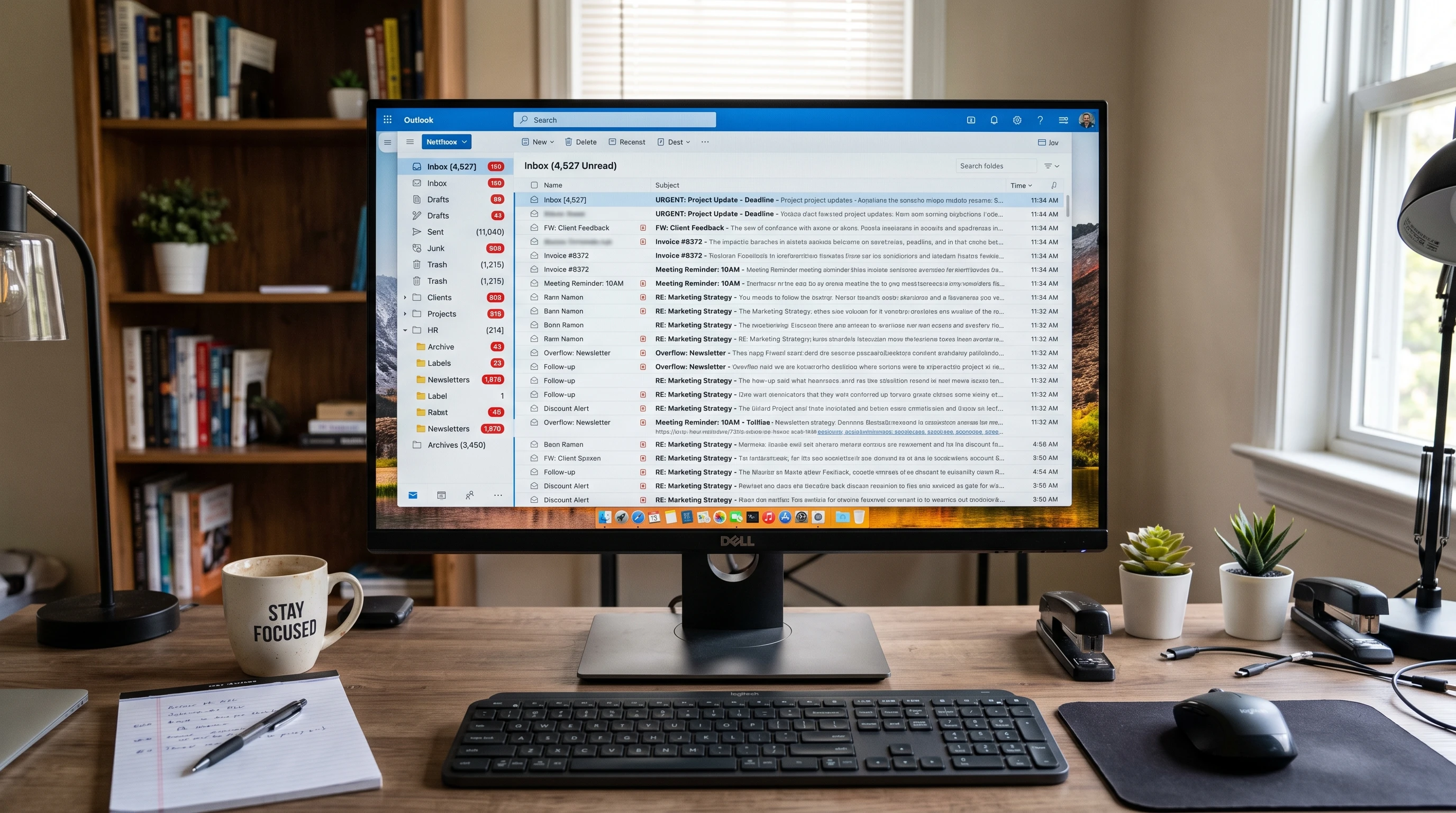
Email overload is one of the biggest challenges for admins and anyone managing lots of communication. When unread messages pile up or high-priority requests get buried, it’s hard to stay responsive and organized. Figuring out a good system for handling all that email can make your work smoother and take away a lot of stress.
If your inbox feels out of control, you’re not alone. I’ve faced days where new emails seemed to multiply by the minute, and it took some real work to keep things sorted out. Over time, I’ve picked up strategies for organizing, filtering, and prioritizing messages so nothing falls through the cracks. Here’s a rundown of what’s worked for me, and how you can clear the clutter and take charge of your inbox.
Email Overload: Why It Happens and What It Looks Like
Getting swamped with emails isn’t just a tech problem; it often happens because admins handle tons of tasks, requests, and updates from different people. Messages stack up when you’re in meetings, covering urgent issues, or just catching your breath between projects. Without some kind of system, keeping up is pretty much impossible.
Signs You’re Dealing With Email Overload
- Hundreds or thousands of unread emails in your inbox
- Struggling to find important or time sensitive messages
- Feeling like you’re always reacting instead of staying ahead
- Missing deadlines or responses because emails get buried
When my inbox hit triple-digit unread counts, that’s when I knew it was time to get organized. If you’re there, you’ll find these strategies super useful.
Making Email Organization Easy
A cluttered in-box just slows you down, so it’s worth putting some quick systems in place. I’ve found that you don’t have to spend hours organizing, but you do need a repeatable process that you stick with. Taking just a few minutes each day can make a major difference.
Folders, Labels, and Tags
- Create folders for different projects, departments, or types of requests (like “HR Requests,” “Tech Tickets,” or “Finance”).
- Use color coded labels or tags for things like “Urgent,” “Waiting for Reply,” or “Reference.” These stand out and help you spot what you need fast.
- Set up an archive folder to get messages out of your main inbox without deleting them.
Labels and tags work especially well in larger organizations where you might be juggling dozens of separate conversations each day. If your team shares an inbox, creating a labeling standard helps everyone get on the same page.
Use Search and Filters
Most email systems have powerful search and filter tools. Make filters to auto-move routine emails (like newsletters, system notifications, or reports) into folders you check less often. That way, the main in-box only shows stuff you actually need to see right away. Experiment with different filters to see which ones make the biggest impact. For example, build a filter for all emails containing certain phrases that signal an update or notification, so these skip your inbox.
Deciding What To Keep, and What To Toss
Not every message deserves a spot in your inbox forever. I’ve made it a personal rule: only keep emails you genuinely need for records, legal reasons, or ongoing projects. Everything else either gets archived or deleted.
Emails Worth Keeping
- Requests or approvals you might need for followup
- Important conversations with clients, vendors, or leadership
- Documentation of completed tasks or deliveries (like receipts or confirmations)
- Reference materials you’ll need again (like onboarding steps, key links, or policies)
What To Send To The Trash or Archive
- Informational emails you’ve already read and acted on
- Old meeting invites or notifications you don’t need anymore
- Marketing and promo messages that aren’t useful
Having fewer emails makes the important ones easier to find, and keeping clutter to a minimum really helps with focus. This simple “keep, archive, delete” rule has saved me hours of digging in the past.
Prioritizing Email: What to Read First
When you open your inbox, it’s pretty tempting to start from the top and just work down the list. In my experience, that’s a quick way to miss deadlines or get stuck on unimportant replies. Instead, I sort and tackle emails based on what really matters for the day. Taking a few moments to set priorities helps make sure high impact messages get attention.
How I Prioritize Emails
- Scan for urgent requests from direct managers, executives, or key clients.
- Look for subject lines with deadlines, approvals, or questions only I can answer.
- Handle anything flagged as high priority or marked with a red exclamation mark.
- Flag messages that can be answered quickly (like a yes/no reply or status update) to clear the list fast.
Tips for Faster Email Triage
- Sort emails by sender or subject, not just by time received.
- Use preview panes if you have them; no need to open every single message if you can see the basics up front.
- Set aside specific times during the day to batch process emails, rather than checking constantly.
This discipline means you don’t get distracted by things that aren’t as urgent, and it creates natural focus blocks in your work.
Putting Emails Aside (Without Missing Anything)
Not every email has to be dealt with as soon as it arrives. The trick is to park non-urgent or “waiting on someone else” messages where you’ll remember to follow up, but where they won’t distract you. Setting up your own “pending” system keeps everything in reach but out of the way for now.
How I Keep Track of Emails to Handle Later
- Move them to a “Pending” or “Follow Up” folder; easy to scan once or twice a day.
- Use stars, flags, or pin features to mark messages you don’t want to lose sight of.
- If your system allows, set up reminders or snooze the email to pop back up later at a better time.
This is especially handy for requests you’re waiting on someone else to answer, or stuff that only needs a weekly update. It’s great for making sure those “waiting on reply” threads don’t get lost in the daily flood.
Knowing When You’ve Managed Your Inbox Well
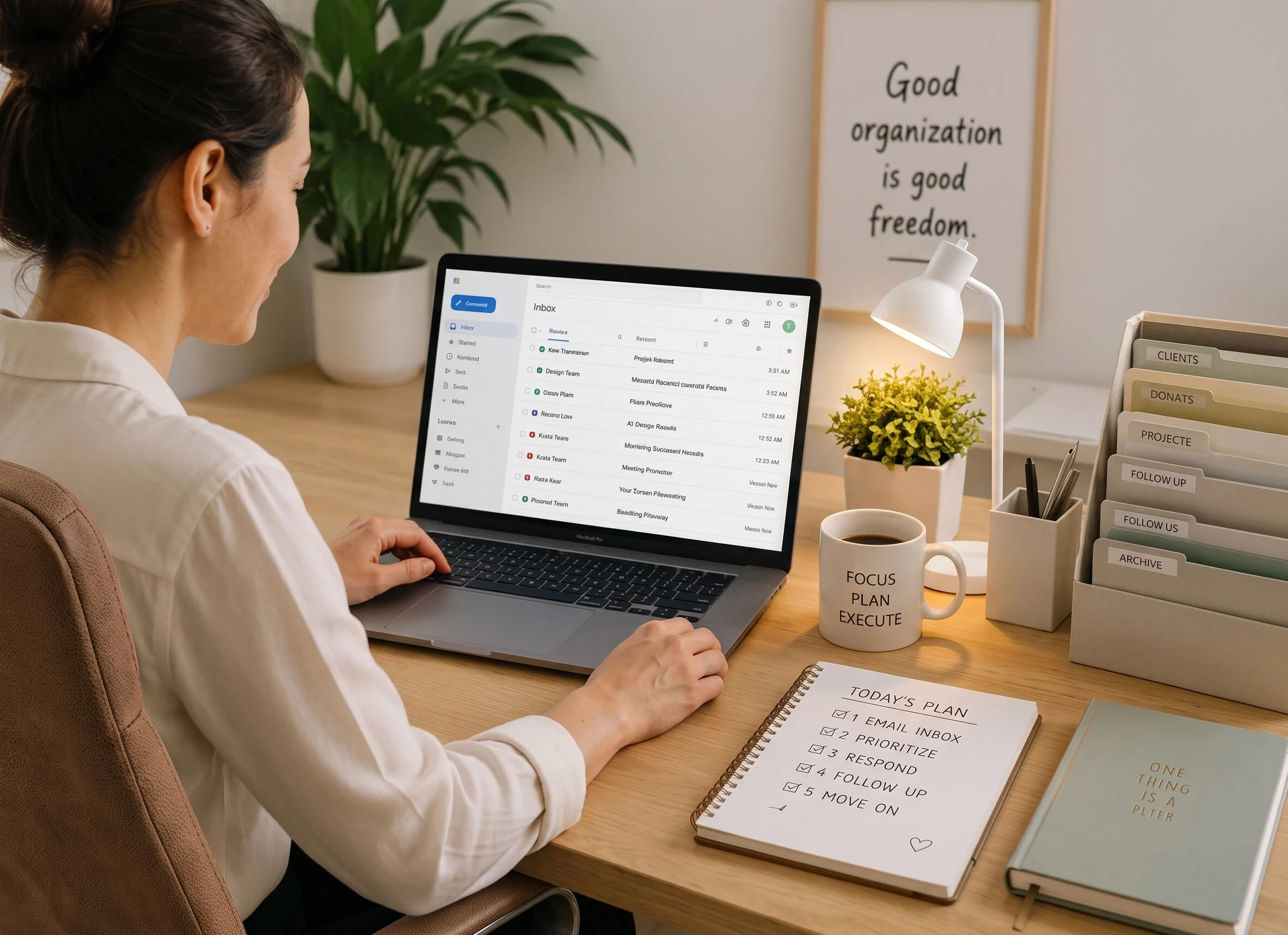
Clearing email overload isn’t about having a perfectly empty inbox every day. For me, success looks like this:
- Important messages are easy to find, and never missed.
- Responses go out promptly (especially for time sensitive requests).
- I’m not worried I’ll forget something, because everything’s tracked in folders or with reminders.
- The in-box isn’t a stressful to-do list; it’s just another tool to keep work running smoothly.
After putting these habits in place, it was a lot easier to keep things under control even when busy season hit or when big projects landed all at once. The feeling of opening my email and knowing what’s there (instead of fearing the unknown) is honestly pretty great. I also noticed fewer urgent follow-ups from co-workers, since my reply times improved with a clearer system.
Quick Answers to Common Admin Email Problems
Too Many Newsletters and Notifications?
Unsubscribe from anything you don’t need, or batch these into a folder you check once a week. If you sign up for new tools or platforms, add their updates to your “low priority” filter right away.
People Still Sending Urgent Stuff To The Wrong Folder?
Let your team or colleagues know how you organize your in-box and which methods work best. If possible, ask repeat senders to use certain subject lines for priority requests (like “URGENT” or “ACTION NEEDED”). Some companies even set up quick guides for how to tag or flag incoming mail to help everyone out.
Email Anxiety or Feeling Behind?
- Block time on your calendar every day for emails, and stick to it as much as possible.
- Don’t be afraid to set an away message if you’re truly swamped; it’s better to communicate than to drop the ball.
Tools like Microsoft Outlook, Gmail, and even addons like Boomerang or SaneBox are worth checking out for extra sorting power. Just remember, any tool is only as good as your habit of using it consistently. For really advanced triage, try integrating your email with your task management system, like Asana or Trello, so action items never get missed.
Your Next Steps For a Cleaner Inbox
- Pick one folder or system to start organizing today—even if it’s just archiving or deleting old mail. Making a small change is easier than overhauling everything at once.
- Set priorities each morning so you know what to tackle first. You’ll breeze through your most important emails and feel more in control as the day starts.
- Schedule time for non-urgent or follow-up emails, and stick with it for a week to see how it feels. After a few days, you’ll notice you’re missing less and stressing less, too.
Once you get the basics down, keeping email overload under control feels way more manageable. Whether you’re just getting started or looking to fine-tune your email habits, these methods can help streamline your workflow and free up more mental space for your real priorities. Do you have any favorite strategies? Share what works for you in a comment below!
I like your suggestion about setting aside specific times to deal with email instead of checking it constantly. That’s one I could probably do a better job with myself. At work, it’s very easy to see a new email come in and immediately stop what I’m doing to see what someone wants. Before long, email is determining what I work on instead of me determining what needs to be done.
I can see how handling email at certain times during the day would make it easier to concentrate on everything else. Of course, there’s always that concern that something genuinely urgent will arrive while you’re not looking.
Do you have a system for making sure truly urgent emails still get your attention when you’re trying not to monitor your inbox all day?
It can be a juggling act to not miss urgent emails when doing deep work. First thing, a must is to identify what absolutely needs attention. Then set up your email to notify you when an email arrives from those sources. That may work for you too. It takes trust but it has been successful for me. Be flexible but keep working at it. You’ll find just the right way to give yourself breathing room to keep moving forward while keeping up with the urgent things.