
Most of an admin’s day doesn’t show up in a tidy order. A report that needs two uninterrupted hours shares the morning with a phone call, three chat pings, a visitor who needs a signature, and a courier at the door. Your desk is where all of that lands, so how it’s laid out matters as much as how clean it is.
This piece covers how to organize your desk for better focus at work by placing every item according to the kind of task it serves. Where something sits decides what you see, what you reach for, and what you have to remember. Those are the three things that add to mental load.
A tidy desk isn’t the same as a desk that helps you think
A clear surface looks calm, and there’s a real case for it. If you want that angle, there are posts here on maintaining workplace cleanliness to reduce stress and adding plants for mental wellbeing. Neither one tells you where the stapler goes.
A desk can be spotless and still cost you effort all day. If your notebook lives in a drawer, every call means opening it. If your phone sits on the wrong side, you reach across your keyboard and your writing hand. If the approvals tray is behind your monitor, you forget it exists until someone asks.
So, the question to ask about each item isn’t “does this look neat?” It’s “what does this item make me do, and how often?” Ask that and the layout starts to follow from the answers.
Map your desk to the three kinds of work you actually do
Almost everything on an admin’s plate falls into one of three types. Each one wants something different from the physical space.
- Deep work. Budgets, minutes, itineraries, policy updates, anything that needs a stretch of concentration.
- Reactive requests. Calls, walk-ups, chat messages, “quick question” emails, someone needing a document right now.
- Handoffs. Work moving in or out: forms for sign-off, files passed to a colleague, deliveries, items waiting on someone else.
Give each type of work its own zone, even if a zone is only a few inches wide.
The deep work zone is the space directly in front of you: main screen, keyboard, and a clear patch of surface. Only the current task’s materials belong here. When you start a focused block, whatever isn’t about that task moves to the side.
The reactive zone sits beside your phone hand. This is where a notepad and pen live, plus your headset or phone. A request lands, you jot it down in ten seconds, and you go back to what you were doing. Without a fixed capture spot, requests end up as sticky notes on the monitor, and then the monitor is the clutter.
The handoff zone is a physical tray, folder, or marked corner. Make it two labeled sections: “Coming in” and “Going out.” Anything waiting on someone else goes in the second section with a note of who and when. Your head no longer has to carry the list of what you’re waiting for.
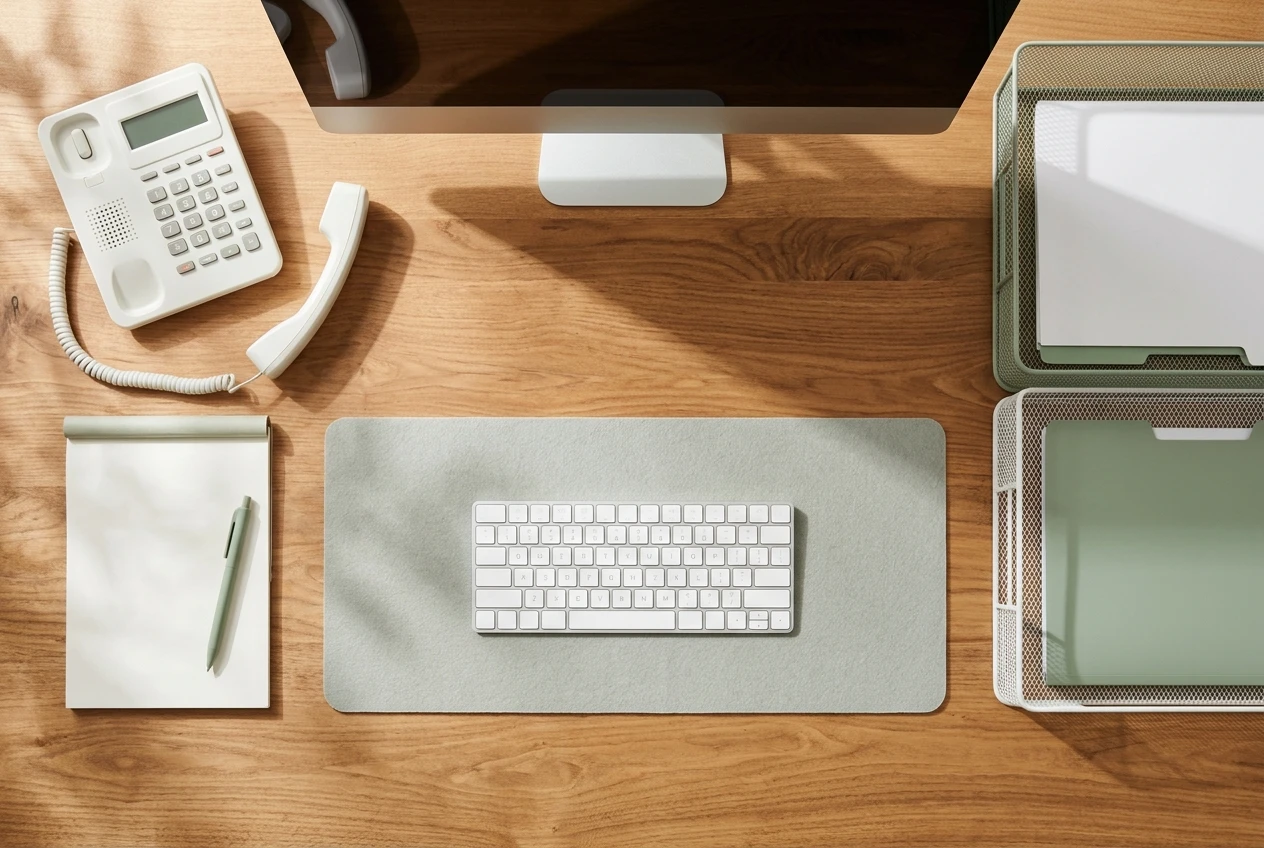
When all three zones exist, an interruption has an obvious place to go. That alone removes a lot of small decisions.
Keep what you grab daily within arm’s reach and the rest out of sight
Sort everything on and around your desk by how often you touch it.
- Every day: pen, notebook, phone or headset, water, charger, the one or two documents you use constantly. These get a permanent spot on the desk, within arm’s reach without leaning.
- Every week: stapler, tape, labels, spare folders, the hole punch. These go in the top drawer.
- Every month or less: reference binders, old files, spare supplies. These go on a shelf or in a cabinet, away from the desk.
A few placement details make a difference:
- Put the phone on your non-writing side. You pick it up with one hand and take notes with the other, and nothing crosses your keyboard.
- Keep one visible list, and only one. A single page or screen showing today’s top priorities beats five scattered reminders. If you rank tasks digitally, the Four-Box System works well as the source for that list.
- Hide what doesn’t serve the current work. Personal items, spare cables, and unrelated paper out of your sightline stop competing for attention. Visible things get noticed, and noticing costs a little each time.
Visibility is useful when something must not be forgotten and costly when it’s irrelevant. Decide which one each object is.
Build a parking spot for interrupted work
Interruptions aren’t going away. What you can change is how long it takes to get back to where you were.
Create a “parking spot”: a small card, a sheet in your notebook, or a sticky note in a fixed place beside your keyboard. When you get pulled away from a task, take ten seconds to write three things:
- Where you stopped. “Halfway through the March travel summary, rows 1 to 20 checked.”
- The very next action. “Verify hotel totals against the invoices.”
- What’s open. “Spreadsheet, two PDFs, the booking email.”
Leave the document open at the exact spot where you stopped. When you come back, you read the card, and you’re working again within a minute instead of reconstructing your own thinking.
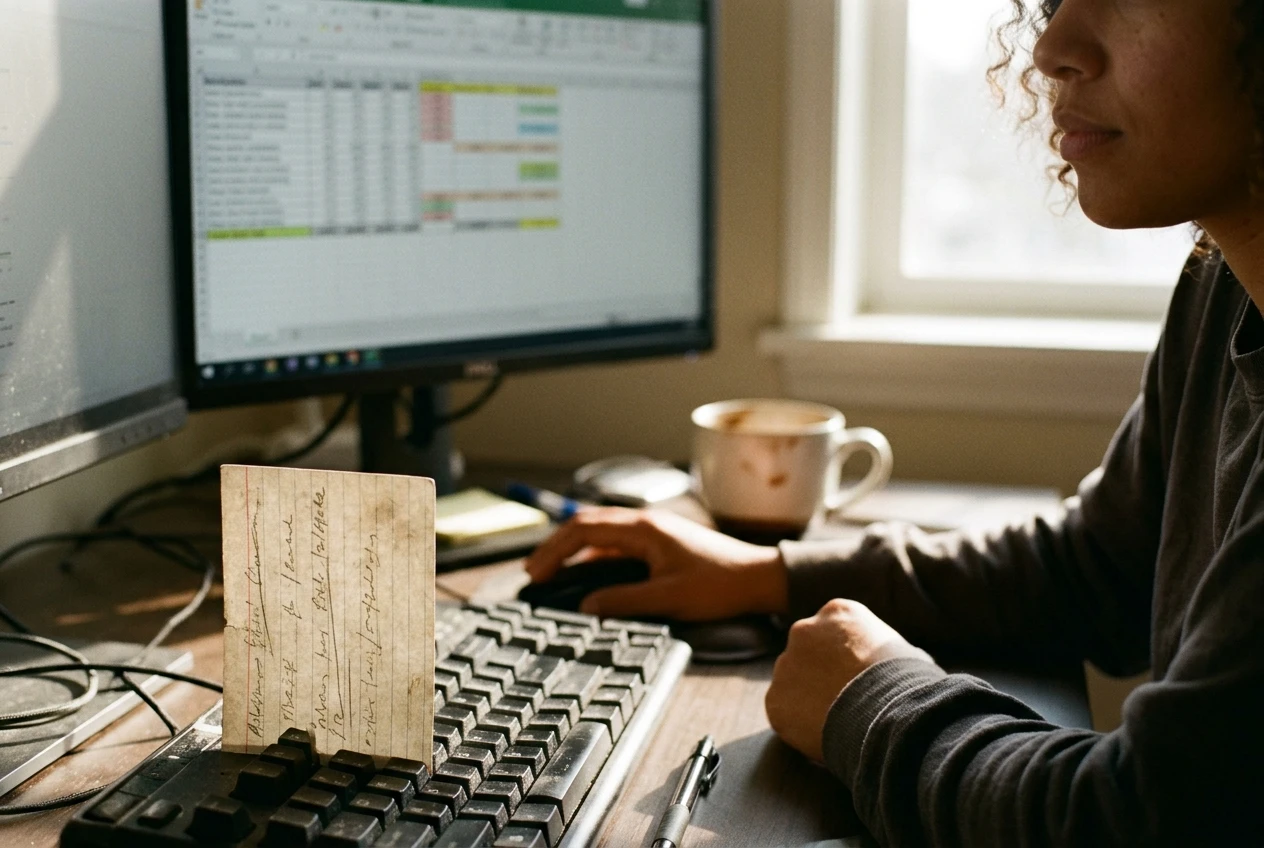
The same card helps when you’re the one doing the interrupting. If you have to pause a task because a handoff is due, the note protects the work you’re setting down.
If most of your interruptions are avoidable ones, pair this with the approach in how to protect your focus hours without becoming the person who never answers. The parking spot handles the interruptions you can’t prevent. Boundaries reduce the number you get.
Light, sound and screen position: small fixes that cut daily friction
Physical discomfort drains attention quietly. A few adjustments are cheap and take minutes.
Screen position. Set the top of your monitor at or slightly below eye level, roughly an arm’s length away. If you work from two screens, put the one you use most directly in front of you and the secondary one off to the side. Constantly turning your head to a main screen set off-center is a daily strain you stop noticing.
Light. Glare on the screen makes you squint without realizing it. If you can, position the monitor so a window is to the side rather than behind or in front of it. For paper tasks like signing, checking printed forms, or reading small type, a desk lamp aimed at the page helps more than overhead lighting.
Sound. If your office is noisy, keep a pair of headphones within reach as a signal as much as a tool. Wearing them tells colleagues you’re mid-task without a conversation. If you can’t wear them, even a consistent habit of facing your screen during focus blocks sends a similar message.
Sightlines. If you have a choice in where the desk faces, set it so you can see people approaching. Being startled by someone standing at your shoulder breaks concentration in a way that a visible approach doesn’t.
Notifications. Your screen includes what pops up on it. Turn off banners for anything non-urgent, and set up alerts only for the senders and subjects that need a fast reply. The guide on how to set up urgent email alerts walks through it.
The 15-minute Friday desk reset
Layouts drift. Items migrate back to the surface, the handoff tray overflows, and the parking cards pile up. A short, fixed reset at the end of the week keeps the setup working, and it means Monday starts from a prepared desk.
Set a timer for fifteen minutes and run through this sequence, about three minutes each:
- Clear the surface. Take everything off the desk that doesn’t belong in the daily zone. Return items to the drawer, shelf, or bin.
- Empty the handoff tray. Process “Coming in” items, and check each “Going out” item for anyone you still need to chase.
- Review your capture notes. Go through the notepad and parking cards. Turn anything still open into an entry on your task list, then discard the scrap.
- Restock and check placement. Make sure the daily items are all there and in their spots. If you reached for something this week and it was in the wrong place, move it.
- Set up Monday. Write the first task of the week on a fresh parking card, with its first action, and leave it beside your keyboard.
Stop when the timer ends. The reset works because it’s short enough to do every week, even on a heavy Friday.
If you’re after other ways to cut stress during the workday, the 90-second resets fit well alongside a desk that’s already arranged to support you.
Join the newsletter: open the sign-up page, enter your name and email in the newsletter part of the form, and press submit. Skip the contact fields if you only want the newsletter.